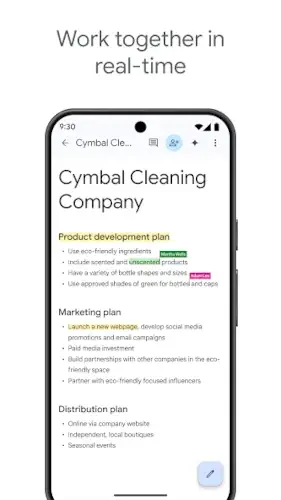
Google Docs is no longer just a simple word processor, it has evolved into a powerful, cloud based writing hub designed for real time collaboration and seamless productivity. Whether you’re drafting a quick note or managing a full team project, it brings everything into one accessible space.
Google Docs Developed by Google LLC is built with a clear purpose: to help users create, edit, and collaborate on documents effortlessly, anytime and anywhere. Its biggest strength lies in its simplicity, no complicated setup, no manual saving, and no barriers between team members working together.
What makes Google Docs especially appealing is its accessibility and teamwork focused design. Because it’s cloud first, your documents are automatically saved and synced across devices, allowing you to switch from phone to laptop to tablet without missing a beat.
What Is Google Docs?
Google Docs is a cloud based word processor that’s part of the broader Google Workspace ecosystem. Unlike traditional document software, it’s designed around real time collaboration, allowing multiple users to work on the same file simultaneously.
At its core, Google Docs operates entirely in the browser, with documents stored automatically in Google Drive. This means no installations are required, and everything stays synchronized across devices, whether you’re working on a desktop, tablet, or smartphone.
Its versatility makes it suitable for a wide range of use cases. Students use it for assignments, professionals rely on it for reports and proposals, and teams depend on it for shared notes, planning, and content creation.
The typical workflow is simple and efficient: create a document, edit your content, share it with others, collaborate in real time, and finalize the work, all within a single platform.
What truly sets Google Docs apart is its collaboration-first approach. Instead of focusing on isolated editing like traditional offline tools, it prioritizes teamwork, communication, and instant updates.
Core Features: The Google Docs Toolbox
Real Time Collaboration
Google Docs allows multiple users to edit a document at the same time. You can see live cursors, track who is typing, and watch changes appear instantly, making teamwork faster and more transparent.
Auto Save & Version History
Every change is automatically saved, eliminating the risk of losing work. The version history feature lets you revisit previous edits and restore earlier versions when needed.
Sharing & Permissions
Documents can be shared via a simple link, with customizable permissions, view, comment, or edit, giving full control over who can access and modify your content.
Templates & Document Creation
Pre-built templates for resumes, reports, meeting notes, and more help users get started quickly without building documents from scratch.
Comments & Suggestion Mode
Team members can leave comments or suggest edits without directly altering the original text, making it perfect for reviews and collaborative editing workflows.
Voice Typing & Add-ons
Voice typing enables hands free writing using speech to text, while add-ons extend functionality with tools for productivity, formatting, and integrations.
AI Integration & Workspace Tools
Google Docs includes AI powered suggestions to improve writing quality and integrates seamlessly with other Google Workspace apps like Sheets, Slides, and Gmail for a connected workflow.
Google Docs Graphics, Interface & Design Philosophy
Google Docs features a clean, minimalist interface that keeps distractions to a minimum. The design prioritizes readability and smooth writing flow, making it ideal for long form content creation.
The familiar toolbar and layout ensure ease of use, even for beginners. Everything is logically placed, allowing users to quickly access formatting tools, sharing options, and collaboration features.
The document canvas itself is simple and uncluttered, helping users stay focused on their content rather than navigating complex menus.
Designed with both individuals and teams in mind, Google Docs balances functionality with simplicity. Its low learning curve makes it accessible to new users while still offering enough depth for advanced workflows.
Google Docs User Reviews & Community Feedback
Positive Feedback
Users consistently praise Google Docs for its ease of collaboration and sharing capabilities. The ability to access documents from any device without setup makes it incredibly convenient for both personal and professional use.
Its free availability is another major advantage, especially when combined with its seamless integration across the Google ecosystem, Drive, Gmail, Sheets, and more.
Negative Feedback
Some users note limitations when working offline, especially compared to traditional desktop-based software. Complex document formatting can sometimes lead to inconsistencies, particularly when importing/exporting files.
Performance can also slow down when handling very large documents with heavy formatting or multiple collaborators.
Overall, Google Docs is widely preferred for teamwork and simplicity. Many users choose it over alternatives because of its familiarity, accessibility, and the ease with which it supports real time collaboration.
Core Workflow (How Google Docs Works)
Step 1: Create or Import a Document
Start by creating a new document directly in Google Docs or importing existing files such as Word documents or PDFs. Everything is automatically saved to your cloud storage.
Step 2: Write and Format Content
Use built-in tools to write, edit, and format your content. You can apply headings, styles, fonts, spacing, and insert images, tables, and links with ease.
Step 3: Share Document with Collaborators
Click the “Share” button to invite others via email or link. You can assign permissions such as Viewer, Commenter, or Editor depending on the level of access needed.
Step 4: Use Comments and Suggestions for Feedback
Collaborators can leave comments or switch to Suggestion mode to propose edits without altering the original text, making feedback organized and transparent.
Step 5: Track Changes with Version History
Google Docs automatically saves every change. With version history, you can view previous edits, restore older versions, and track contributions from each collaborator.
Step 6: Finalize and Export Document
Once complete, export your document in various formats like PDF, Word (.docx), or plain text for sharing or publishing.
Real Time Editing System Explanation
Multiple users can edit the same document simultaneously. Changes appear instantly, with colored cursors showing who is editing what in real time.
Collaborative Syncing Explained
All edits are saved automatically to the cloud, ensuring every collaborator sees the most up to date version without needing manual saves or file transfers.
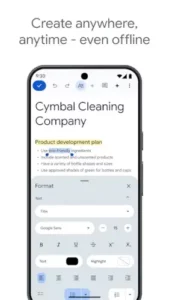
Google Docs Tips & Tricks for Better Productivity
-
Use Keyboard Shortcuts
Speed up editing with shortcuts for copy, paste, formatting, and navigation. -
Enable Offline Mode
Work without internet access and sync changes once you’re back online. -
Use Comments & Suggestions
Avoid overwriting teammates’ work by using suggestion mode for cleaner collaboration. -
Leverage Templates
Save time by using pre-designed templates for resumes, reports, or meeting notes. -
Use Voice Typing
Quickly draft content using voice commands, great for brainstorming or fast writing. -
Organize with Google Drive
Keep documents structured in folders for easy access and better workflow management.
Google Docs Similar Apps You May Consider
Microsoft Word Online
Cloud based version of Word with powerful formatting tools and familiar interface.
Zoho Writer
A clean, collaborative writing platform with solid document automation features.
OnlyOffice Docs
Offers a traditional office style experience with strong team editing tools.
Quip
Combines documents with team workflows, chat, and task management.
Notion
All in one workspace blending writing, databases, and project organization.
Brief Comparison
-
Google Docs: Best for simplicity and real time collaboration
-
Others: Offer more advanced formatting or integrated productivity features
Google Docs Community, Collaboration & Ecosystem
Google Docs thrives on collaboration. Its real time co-editing system allows multiple users to work together seamlessly, making it ideal for teams and group projects.
The commenting and suggestion tools create a structured feedback loop, while sharing permissions ensure secure and controlled access to documents.
A massive ecosystem of tutorials, templates, and support resources makes it easy for new users to learn and for advanced users to optimize their workflow.
It’s widely used across schools, businesses, and remote teams, making it one of the most recognized tools for collaborative writing.
Conclusion
Google Docs stands out as a powerful yet simple cloud-based document editor designed for modern collaboration.
Strengths
-
Real time collaboration
-
Easy to use interface
-
Cloud accessibility from any device
-
Seamless integration with Google Workspace
Limitations
-
Limited advanced formatting compared to desktop tools
-
Offline functionality is not as robust
-
Performance may slow with very large documents
Google Docs is an excellent choice for students, writers, and teams who value speed, simplicity, and collaboration. It remains one of the leading tools for cloud based document creation and teamwork.
FAQ
Is the Google Docs app free to use?
Yes, the Google Docs app is completely free. All you need is a Google account to create, edit, and share documents across devices.
Where can I download the Google Docs app?
Download Google Docs from the Official Google Play Store
Can I use Google Docs offline?
Yes, you can enable offline mode in the app settings. This allows you to edit documents without internet, and changes will sync automatically once you’re back online.
What makes Google Docs better than other document apps?
Google Docs stands out with real time collaboration, automatic cloud saving, cross device syncing, and easy sharing, making teamwork seamless and efficient.