Google Family Link is today’s always connected world needs, managing how children interact with screens. Isn’t just helpful, it’s essential. From social media to mobile games, kids are spending more time online than ever, making parental control tools a key part of modern parenting.
Google Family Link steps in as a simple yet powerful solution designed to help families stay in control without turning screen time into a constant battle. Developed by Google LLC, the app focuses on building healthy digital habits rather than enforcing strict limitations.
What makes it stand out is its balance, offering parents the ability to supervise and guide, while still allowing kids to gradually gain independence as they grow. It’s free, easy to use, and built with real life parenting challenges in mind.
What Is Google Family Link?
Google Family Link is a parental control and family management app designed to help parents monitor and guide their child’s digital activity in a safe and structured way.
At its core, the app allows parents to oversee how their children use their devices, without being overly intrusive. It’s available on both Android and iOS, making it accessible for most families regardless of device preference.
The system works through a simple setup: a parent account is linked to a child’s account, creating a controlled environment where rules, permissions, and activity can be managed in real time.
Target audience:
Families with children and teens who want a practical way to manage screen time while encouraging responsible usage.
Key benefit:
It provides visibility into a child’s digital habits without feeling like constant surveillance, striking a balance between control and trust.
Typical workflow includes:
-
Setting rules (screen time, app limits)
-
Approving or blocking actions (downloads, permissions)
-
Monitoring activity (usage reports, location)
-
Adjusting controls over time as the child matures
Google Family Link Core Features: The Family Link Toolbox
Screen Time Management
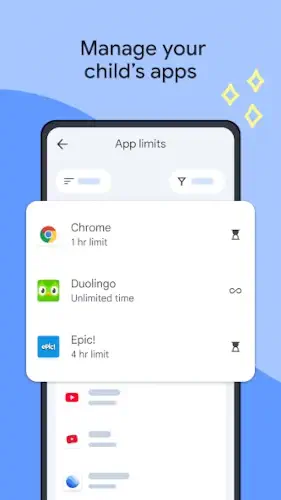
Parents can set daily screen time limits, schedule device “bedtimes,” and remotely lock devices when needed, helping establish consistent routines.
App Management & Approval
Before a child downloads a new app, parents can approve or block it. Permissions and app usage can also be controlled to ensure safe interactions.
Location Tracking
The app provides real time location tracking, allowing parents to see where their child’s device is. Features like arrival notifications and device ringing add an extra layer of reassurance.
Device Monitoring
Parents can view battery levels and receive activity reports showing how much time is spent on each app, helpful for spotting patterns and habits.
Content Restrictions
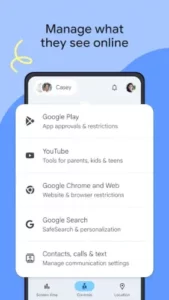
Family Link allows filtering of apps and websites, limiting access to age inappropriate content and services.
Parental Control Setup
The setup process is guided and user friendly, with separate apps/interfaces for parents and children, making onboarding smooth even for non technical users.
Google Family Link Design, Interface & Usability
Google Family Link follows a clean and minimal design that aligns with the broader Google ecosystem. Everything is structured for clarity, no clutter, no unnecessary complexity.
Navigation is straightforward, with clearly labeled sections that make it easy for parents to find what they need quickly. The dashboard style layout presents key information, like screen time and location, at a glance, enabling fast decisions.
The app is especially friendly for non technical users, focusing on accessibility rather than advanced customization. It prioritizes function over flashy visuals, which makes daily use smooth and efficient.
Google Family Link User Reviews & Feedback Overview
Positive Feedback
-
Free and widely accessible for most families
-
Quick setup with intuitive controls
-
Helpful screen time tracking and location tools
-
Reliable for basic parental control needs
Negative Feedback
-
Lacks advanced monitoring features found in premium apps
-
Limited customization compared to paid alternatives
-
Occasional bugs or syncing delays
-
Location history lacks detailed tracking in some cases
How It Works: The Control Workflow
Using Google Family Link follows a simple, structured setup that gradually evolves as your child grows. Here’s how the system works step by step:
Step 1: Create or Link a Child’s Google Account
Start by creating a dedicated Google account for your child or linking an existing one. This becomes the foundation for managing their digital activity.
Step 2: Install Parent and Child Apps
Install the Family Link app on both the parent’s and the child’s devices. The parent device acts as the control center, while the child’s device receives restrictions and permissions.
Step 3: Approve Device Usage and Permissions
Set up the child’s device by approving app access, permissions, and basic usage settings. This ensures everything is configured safely from the start.
Step 4: Set Screen Time Rules and Restrictions
Define daily screen time limits, bedtime schedules, and app restrictions. You can block or approve apps and control how long each one can be used.
Step 5: Monitor Activity and Adjust Settings
Track app usage, screen time, and device activity directly from your phone. Make adjustments anytime based on behavior or needs.
Ongoing Loop
-
Review activity regularly
-
Update rules as needed
-
Adapt controls as your child becomes more responsible
This evolving system ensures the app grows alongside your child’s digital habits.
Google Family Link Tips & Best Practices for Parents
To get the most out of Family Link, consistency and flexibility are key:
-
Set consistent screen time limits early to build healthy habits from the start
-
Use bedtime schedules to encourage better sleep routines
-
Enable location alerts for added safety when your child is outside
-
Regularly review app approvals to stay aware of what your child is using
-
Monitor battery status to ensure your child’s device stays reachable
-
Adjust restrictions gradually as your child earns more trust and independence
The goal isn’t strict control, it’s guidance and balance.
Google Family Link Similar Apps to Consider
While Family Link is a strong free option, there are alternatives worth exploring:
-
Qustodio – Offers advanced filtering, detailed reports, and deeper monitoring tools
-
Bark – Focuses on detecting online risks like cyberbullying and harmful content
-
Norton Family – Strong content filtering and web supervision features
-
Kidslox – Simple and intuitive screen time management
-
Apple Screen Time Built-in solution for iOS users with solid parental controls
Positioning
Google Family Link stands out as a free, beginner friendly solution, while many alternatives provide more advanced (often paid) features for deeper control.
Google Family Link Community & Family Use Case
Google Family Link is not a social platform, it’s designed purely for family management.
-
It encourages open communication between parents and children
-
Promotes shared responsibility for device usage
-
Helps families set clear digital boundaries together
-
Works as a coordination tool, not just a monitoring system
Rather than spying, it supports healthier digital habits through transparency and trust.
Conclusion
Google Family Link delivers a balanced approach to parental control, focusing on simplicity and accessibility.
Strengths
-
Completely free and widely accessible
-
Easy to use interface for beginners
-
Reliable core features like screen time control and app approvals
Limitations
-
Lacks some advanced tools found in premium apps
-
Occasional bugs or missing features reported by users
Ideal Users
-
Parents of younger children
-
Families wanting simple, effective supervision
-
Users looking for a no cost parental control solution
Google Family Link is a practical, approachable app that prioritizes ease of use, safety, and balanced digital habits, making it an excellent starting point for modern family device management.
FAQ
What is Google Family Link and how does it work?
Google Family Link is a parental control app that lets you monitor and manage your child’s device usage, including screen time, app installs, and activity reports.
Is Google Family Link free to use?
Yes, the app is completely free. Parents can access all core features, like screen limits, app approvals, and location tracking, without any subscription.
Where can I download Google Family Link?
Download Google Family Link from Google Play Store.
Does Google Family Link track my child’s location?
Yes, it allows real time location tracking, so parents can see where their child’s device is, helping improve safety and peace of mind.
What age is Google Family Link best for?
It’s designed mainly for children under 13, but it can still be useful for older kids depending on parental preferences and supervision needs.